Get your JT-10.1 connected and running your first measurement.
What's in the Box
- JT-10.1 appliance
- 19V power adapter
- 1× 1m SFP+ DAC cable
- Quick start card with device credentials
Physical Connections
1. Management Port
Connect an Ethernet cable from your computer (or network) to the management port (labeled, 2.5G RJ45). This provides access to the web interface.
2. Power
Connect the 19V power adapter. The power LED will illuminate, and the appliance will boot in approximately 30 seconds.
3. Data Ports (Optional for Initial Setup)
The two SFP+ data ports connect to the network you want to test. You can configure the appliance before connecting these ports.
SFP+ module selection:
- Use the included DAC cable for direct connections up to 1m
- For longer runs or fiber, install appropriate SFP+ modules (SR, LR, or 10GBASE-T)
Finding the Device
The JT-10.1 advertises itself on the network via mDNS. The hostname is printed on the device label:
jt-XXXX.local
where XXXX is derived from the device's MAC address or serial number.
Option A: mDNS Discovery (Recommended)
Open a web browser and navigate to:
https://jt-XXXX.local
Replace XXXX with the identifier on your device label.
Option B: Link-Local Address
If your network doesn't support mDNS, the device falls back to a link-local address (169.254.x.y). You can find it by:
- Connecting your computer directly to the management port
- Ensuring your computer is set to obtain an IP address automatically
- Checking your computer's ARP table or using a network scanner
Option C: DHCP Lease
If the management port is connected to a network with DHCP, check your router's DHCP lease table for the device.
First Login
- Navigate to
https://jt-XXXX.localin your browser - Accept the self-signed certificate warning (expected for new devices)
- Enter the password printed on the device label
- You're now in the JitterTrap web interface
Your First Measurement
Connect Test Traffic
- Install SFP+ modules or DAC cables in both data ports
- Connect your devices under test to the data ports
- Traffic will flow through the appliance transparently
View Timing Data
- In the web interface, select a data port to monitor
- The real-time chart shows packet inter-arrival times
- Statistics panels display mean, min, max, and percentile values
Understanding the Display
- Inter-arrival time: The time between consecutive packets
- Jitter: Variation in inter-arrival time
- Histogram: Distribution of timing values
For detailed interface documentation, see the User Guide.
Network Deployment
The JT-10.1 can be deployed in two configurations:
Inline Mode
Connect the appliance between two devices or network segments:
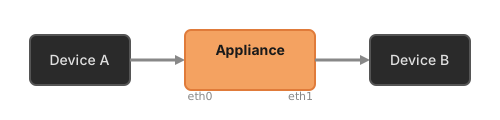
All traffic passes through the appliance. You can measure timing and inject impairments.
Passive Mode
Connect one data port to a mirror/SPAN port on a switch:
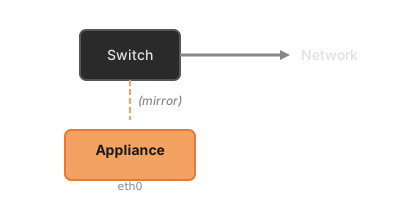
The appliance captures traffic for analysis without affecting the network path.
Next Steps
- Web Interface Guide — Detailed interface documentation
- Timing Measurement — How to interpret and configure measurements
- Impairment Injection — Adding delay, jitter, and packet loss
- Triggered Capture — Automatic capture on threshold violations
Troubleshooting
Can't find the device
- Verify the management port is connected and has link (LED activity)
- Try connecting your computer directly to the management port
- Check that mDNS is not blocked by your firewall
- Wait 60 seconds for the device to complete boot and network configuration
Certificate warning
This is expected. The device ships with a self-signed certificate. You can replace it with your own certificate via the web interface.
No traffic on data ports
- Verify SFP+ modules are properly seated
- Check link LEDs on both data ports
- Ensure cables are connected to both ends
Support
For assistance, contact info@sunnybeachlabs.com.
Early access customers receive direct engineering support—we'll help configure measurements and interpret results for your specific application.