How to connect your JT-10.1 or JT-1.1 to the network you want to test.
Deployment Modes
The appliance can operate in two modes depending on your testing requirements.
Inline Mode
In inline mode, the appliance sits in the traffic path between two devices or network segments. All traffic passes through the appliance.
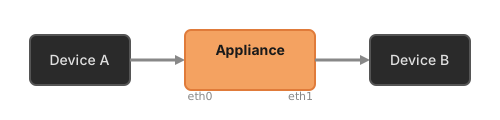
Use inline mode when you need to:
- Measure timing on live traffic
- Inject impairments (delay, jitter, loss)
- Test how systems respond to degraded network conditions
Characteristics:
- Traffic flows bidirectionally through the bridge
- The appliance is transparent (no IP address on data ports)
- No protocol traffic (ARP, LLDP, STP) is generated
- Latency added by the appliance is minimal (microseconds)
Passive Mode
In passive mode, one data port connects to a mirror (SPAN) port on a switch. The appliance receives a copy of traffic without being in the path.
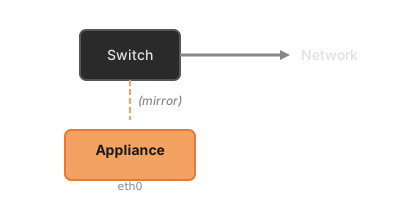
Use passive mode when you need to:
- Monitor production traffic without risk
- Analyze timing on existing network paths
- Capture packets for offline analysis
Characteristics:
- Read-only access to traffic
- Cannot inject impairments (traffic is a copy)
- No impact on the monitored network
- May miss packets if mirror port is oversubscribed
Port Identification
JT-10.1
| Port | Type | Label | Purpose |
|---|---|---|---|
| eth0 | SFP+ 10G | Data A | First data port |
| eth1 | SFP+ 10G | Data B | Second data port |
| eth2 | RJ45 2.5G | Management | Web interface access |
JT-1.1
| Port | Type | Label | Purpose |
|---|---|---|---|
| eth0 | RJ45 2.5G | Data A | First data port |
| eth1 | RJ45 2.5G | Data B | Second data port |
| eth2 | RJ45 2.5G | Management | Web interface access |
Cabling
JT-10.1 (SFP+ Ports)
The SFP+ ports accept various transceiver types:
| Connection Type | Recommended Module |
|---|---|
| Direct attach (< 3m) | DAC cable |
| Multimode fiber | 10GBASE-SR |
| Singlemode fiber | 10GBASE-LR |
| Copper RJ45 | 10GBASE-T SFP+ |
Ensure both ends of each connection use compatible modules.
JT-1.1 (RJ45 Ports)
Use standard Cat5e or Cat6 Ethernet cables. The ports are 2.5 GbE capable but operate at 1 Gbps for sustained testing.
Management Network
The management port should be connected to a network where you can access the web interface:
Option 1: Existing Network Connect to your LAN. The appliance obtains an address via DHCP and advertises via mDNS.
Option 2: Direct Connection Connect your laptop directly to the management port. Both devices will obtain link-local addresses (169.254.x.y).
Option 3: Isolated Management Network Connect to a dedicated management VLAN for security.
The management port is firewalled—only HTTPS (443) and mDNS (5353) are accessible.
Common Topologies
Testing Between Two Devices
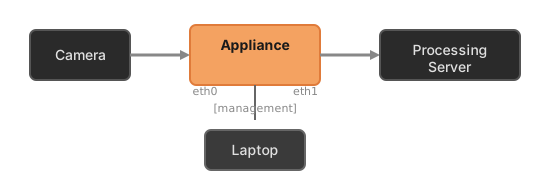
Measure timing and inject impairments on the camera-to-server link.
Testing Network Equipment
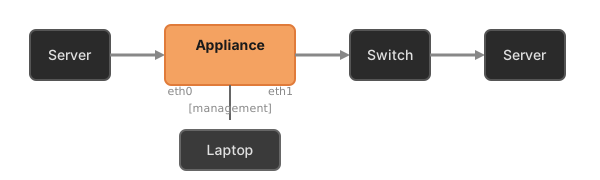
Verify switch latency and test behavior under impaired conditions.
Monitoring Production Traffic
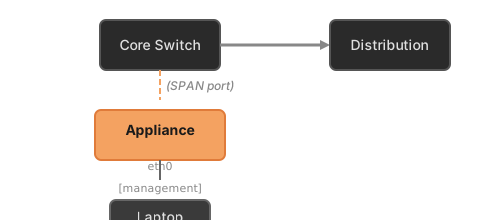
Passive monitoring of production traffic.
Best Practices
- Connect management first — Verify web access before connecting data ports
- Use dedicated management — Keep management traffic separate from test traffic
- Label your cables — Clear labeling prevents confusion during testing
- Verify link status — Check LEDs and web interface before starting measurements
- Document your setup — Record topology for reproducibility
Troubleshooting
No link on data ports
- Verify cable connections at both ends
- For SFP+: ensure modules are fully seated
- Check that the connected device supports the link speed
- Try swapping cables or modules to isolate the issue
Can't reach management interface
- Verify management port has link
- Check that your computer is on the same network/subnet
- Try direct connection if network path is unclear
- Wait 60 seconds after boot for mDNS advertisement
Traffic not flowing through bridge
- Verify both data ports have link
- Check connected devices are sending traffic
- Confirm the bridge is enabled in the web interface